
Use the workbench
The workbench is the right-side panel: files, a terminal, plans, and captured agent shells next to the chat. Toggle it with Cmd or Ctrl+Shift+B (see Keyboard shortcuts).
The plus menu (New tab) offers Editor and Terminal. Plan tabs and agent-shell tabs open from chats and from Settings lists, not from that plus menu.
Tabs persist across launches. Interactive terminal sessions do not: the PTY dies with the tab.
If a Terminal tab is already open for that project, Vixl asks whether to reuse it or open another. Default is ask (workbench.duplicateTabBehavior in settings.json). Open existing or Open new, and optionally do not ask again. Editor tabs do not use that prompt: one editor tab per project, and opening a file adds it there.
Editor
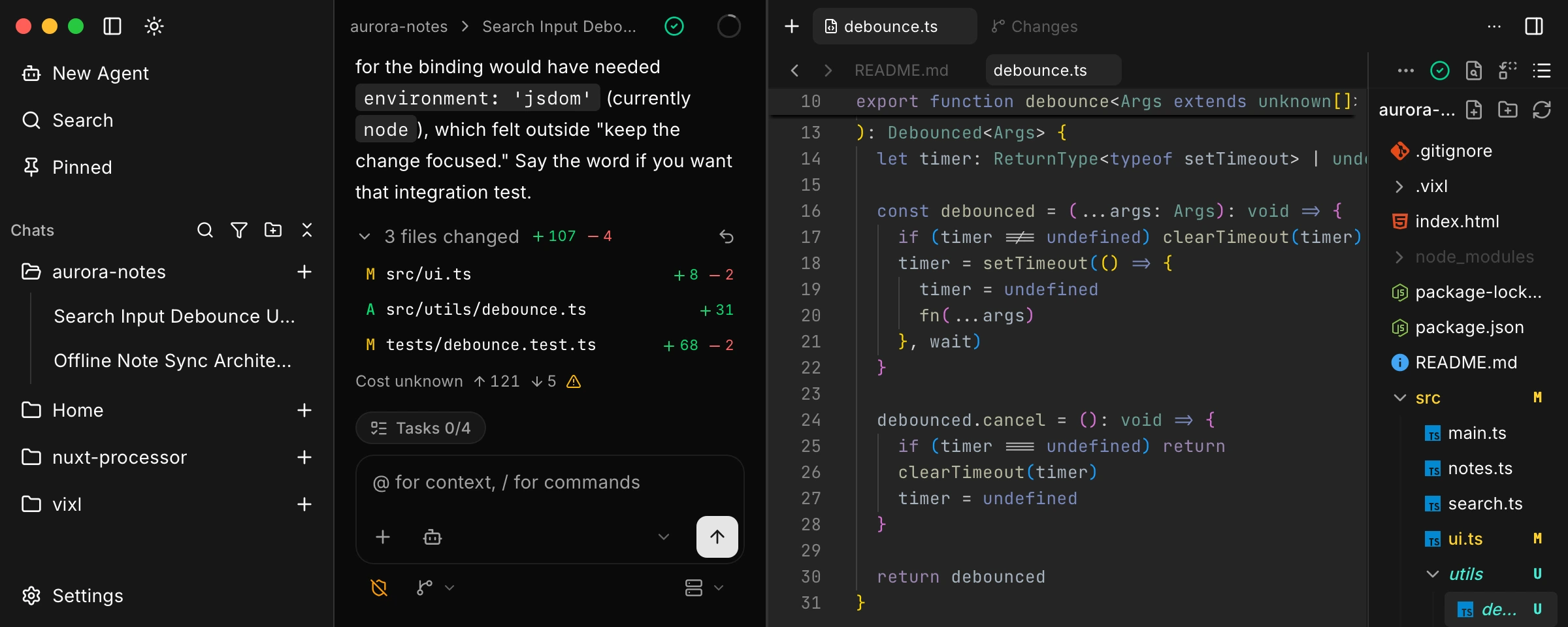
Editor tabs host a Monaco editor. One tab can hold several open files. Project row Open Editor opens README.md. Graph nodes, skills, agents, rules, and file-tree clicks open at a path. Markdown can preview.
Cmd or Ctrl+S saves the active buffer. Cmd or Ctrl+Shift+F opens Find and replace in the workspace. Cmd or Ctrl+Shift+H opens the same pane with replace expanded. Search files is the file picker. Toggle file list shows the tree. From the tree you can create, rename, copy, add a file to chat, open a folder in a terminal, and delete.
Language servers are configured in Settings > LSP. The status chip is on the editor tab. See Language servers.
Closing a dirty file asks before discarding.
Terminals
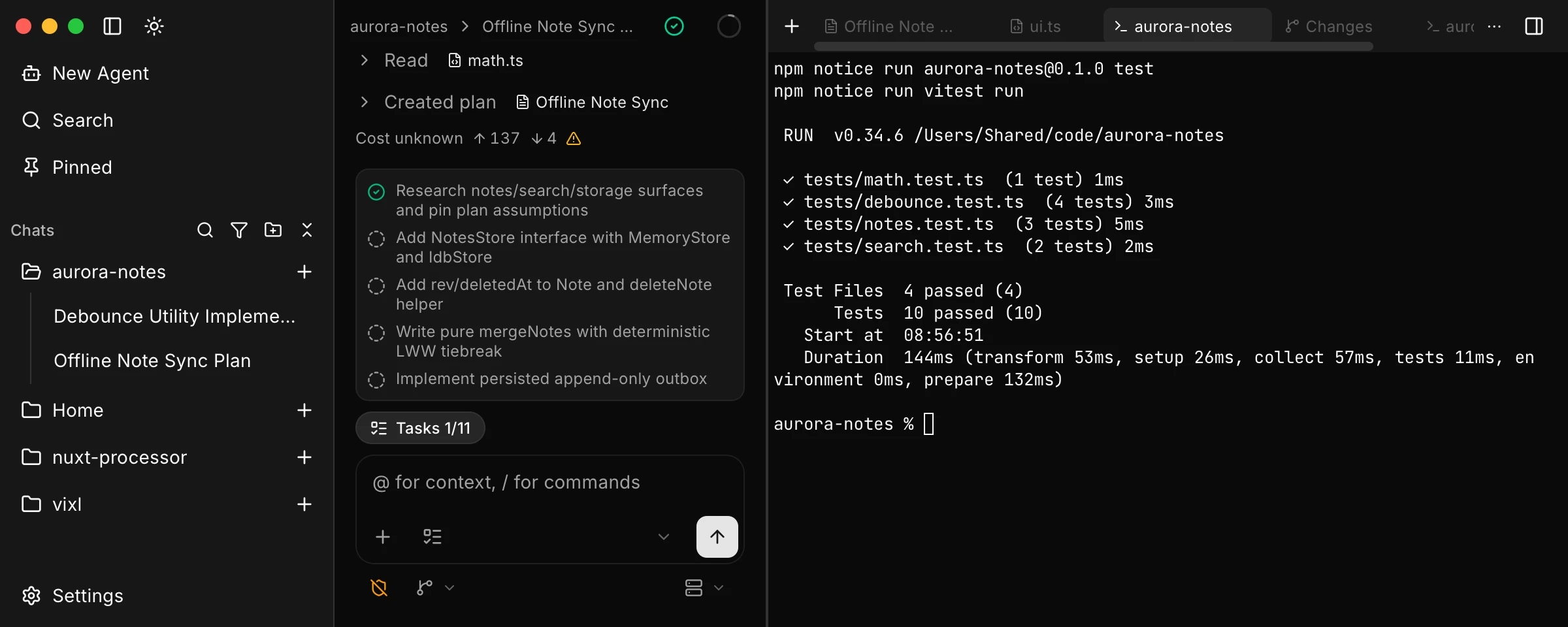
Terminal is a real interactive PTY, not the agent's run_terminal tool. The shell is $SHELL or /bin/zsh (Windows COMSPEC / cmd.exe). The working directory is the project root, or a folder from Open in terminal. A terminal needs a project root and a PTY that can spawn.
Plan tabs
create_plan, Settings > Plans, and the project Plans tab open .vixl/plans/<id>/PLAN.md as a plan tab. The header has Orchestrate and Build. See Work with plans.
Agent shells
When the agent runs run_terminal, Vixl opens an agent-shell tab. That view is captured stdout and stderr plus Stop terminal. It is not a PTY.
See Shortcuts and the command palette to open an editor or terminal from the palette.